How to Claim Gluten-Free Food on Taxes: Free CRA Spreadsheet
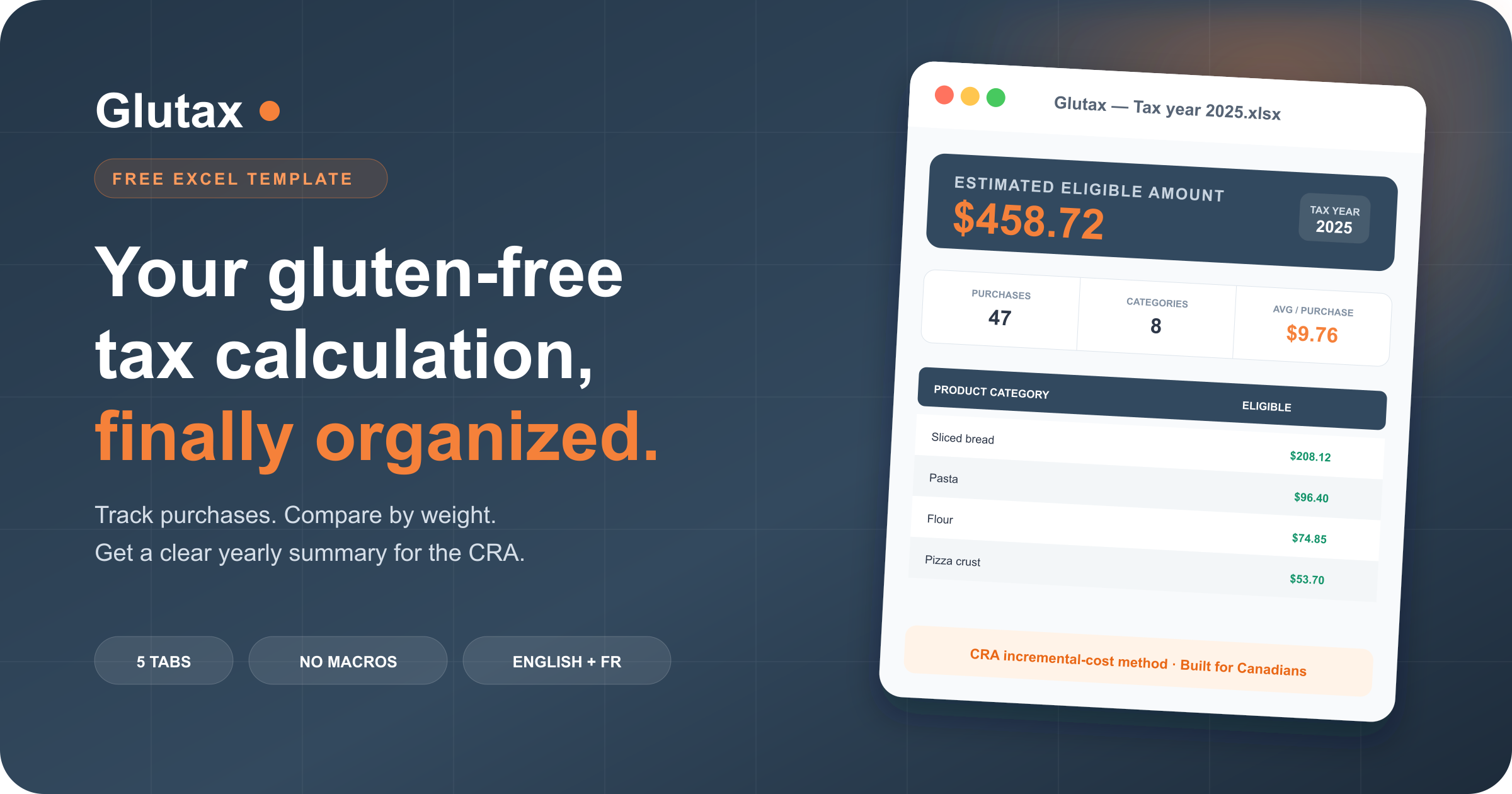
To claim gluten-free food on your taxes in Canada, the CRA does not accept the full price of the product. It accepts the incremental cost: what you paid above a comparable product containing gluten. This guide walks through that calculation, and the free Excel spreadsheet does the arithmetic for you, purchase by purchase, up to the yearly summary you keep for your claim.
It is free, macro-free and available in separate English and French versions. This guide shows exactly how to use every tab without touching a formula.
Download the free Excel calculator
Choose the English or French version and receive the file by email. No payment information is required.
Get the free spreadsheet →Important: this is an expense calculator, not a refund estimator
The spreadsheet calculates your estimated eligible incremental food cost. Your final medical expense tax credit depends on the rest of your return, your income and your other medical expenses.
Why a celiac tax spreadsheet is useful in Canada
The CRA does not let you claim the full price of gluten-free groceries. Its rule is the incremental cost: the price of the gluten-free product minus the price of a similar product with gluten. If package sizes differ, comparing the unit price keeps the calculation consistent.
Gluten-free
$7.49
450 g loaf
Regular equivalent
$2.99
adjusted to 450 g
Eligible difference
$4.50
estimated eligible expense
Example: $3.99 ÷ 600 g × 450 g = $2.99 regular equivalent; $7.49 − $2.99 = $4.50 incremental cost.
According to the CRA's 2025 medical expense guide, you should keep a medical practitioner's letter confirming celiac disease and the need for a gluten-free diet, the receipts for the products claimed, and a 12-month product summary. The workbook is organized around that summary.
New to the tax rules? Read our complete guide to the celiac tax credit in Canada first, then come back here for the practical workflow.
What is included in the free Excel template?
Home
A three-step quick start and one tax-year control for the whole workbook.
Comparable Products
Your regular, with-gluten reference products and their automatically calculated unit prices.
My Gluten-Free Purchases
A purchase log with dropdown categories and protected formulas for the eligible amount.
Summary
Yearly total, purchase count, categories claimed, average per purchase and category breakdown.
Discover Glutax
A clear next step when you want receipt scanning and a detailed tax-ready PDF instead of manual entry.
The workbook contains no macros and no external data connection; it was verified in Microsoft Excel and LibreOffice.
How to use the gluten-free tax spreadsheet
Step 1: choose the tax year
Open the Home tab and set the tax year in the orange box. The same year appears across the workbook. Keep one file per tax year so purchases and receipts never get mixed.
Step 2: enter your regular comparable products
Go to Comparable Products. One sliced-bread example is included to show the format; replace it or add your own categories. For each regular product, enter:
- Product category: a reusable name such as Sliced bread, Pasta or Pizza crust;
- Reference brand: optional, but helpful when you need to explain the comparison;
- Price: what the regular product costs at your usual grocery store;
- Size: the package weight in grams, or the comparable unit count.
Use categories, not brands
“Sliced bread” is more durable than “Brand X white loaf.” Several gluten-free brands can use the same regular equivalent when they represent the same type of food. Our guide to organizing gluten-free purchases explains how to build categories that stay clear all year.
Step 3: log every gluten-free purchase
In My Gluten-Free Purchases, fill only the input columns: date, product, price paid and package size. Choose the product from the dropdown so Excel can connect the purchase to the right regular comparable.
| Date | Product | Paid | Size | Eligible |
|---|---|---|---|---|
| 2025-02-08 | Sliced bread | $7.49 | 450 g | $4.50 |
The grey calculation columns fill themselves: your paid unit price, the comparable unit price, the difference per unit and the estimated eligible amount. If a regular equivalent costs more, the workbook never creates a negative claim.
Step 4: add more purchase rows safely
The file starts with a compact set of purchase rows. When you need more, right-click inside the purchase table and choose Insert → Table Rows Below. Excel copies the protected formulas and dropdown automatically. Do not paste over the grey formula columns.
Step 5: review the yearly summary
Open Summary to see your estimated eligible amount, the number of purchases entered, the number of active categories and the average amount per purchase. The detail below groups quantities and totals by product category.
This is the sheet to review with your tax return or accountant. Keep the original receipts and your evidence for the comparable prices; the spreadsheet organizes the calculation but does not replace the supporting documents the CRA may request.
How to organize receipts with the spreadsheet
Mark the receipt
Circle or highlight every gluten-free item you enter.
File by month
Use twelve envelopes or folders named January through December.
Keep references
Save a dated photo or note of each regular comparable price.
If several people share a product, record only the portion eaten by the person with celiac disease. The CRA specifically limits the eligible expense to that person's share.
Six common mistakes the calculator helps prevent
- 1Claiming the full gluten-free price. Only the incremental difference is potentially eligible.
- 2Comparing unequal packages directly. The workbook normalizes the comparison by gram or unit.
- 3Using vague categories. Clear product types make the summary easier to defend months later.
- 4Losing receipts. A calculation without the corresponding receipt is incomplete documentation.
- 5Claiming a shared household product in full. Keep only the celiac person's portion.
- 6Confusing the expense with the refund. The eligible total feeds into the medical expense calculation; it is not the amount deposited in your bank account.
Excel spreadsheet or Glutax app?
The spreadsheet is the best free starting point if you do not mind entering purchases. The app is the natural next step when manual tracking starts to feel like work.
| Task | Excel template | Glutax app |
|---|---|---|
| Enter purchases | Manual typing | Receipt scan |
| Calculate unit cost | Automatic formulas | Automatic |
| Keep receipts linked | Separate folders | Attached to each expense |
| Year-end output | Excel summary | Detailed PDF report |
Free · English and French
Get the spreadsheet by email
Enter your email and we'll send you the Excel file, its five tabs and the annual summary built on the CRA premium method.
Frequently asked questions
Yes. The Glutax Excel template is free and calculates the estimated incremental cost of gluten-free products using comparable regular products. It is not an official CRA form and does not calculate your final refund, but it organizes the purchase summary and math the CRA describes.
The CRA says to keep a letter from a medical practitioner confirming celiac disease and the need for a gluten-free diet, the receipts for every claimed gluten-free product, and a summary of each product purchased during the 12-month claim period. Keep these records in case the CRA asks for them.
No. It calculates the estimated incremental food cost that may be entered with your medical expenses. The actual non-refundable tax credit depends on your income, the annual medical-expense threshold, your other eligible expenses and the tax you owe.
Yes. A parent, spouse or caregiver can maintain the file for the person with celiac disease. If the household shares a gluten-free product, only record the portion consumed by the person with celiac disease for the eligible calculation.
Yes. The download page offers a complete English version and a complete French version. Both contain the same protected formulas, five-tab structure and yearly category summary.
This article and spreadsheet provide general information only. Tax rules and individual situations can change; consult the CRA guidance or a qualified tax professional for advice about your return.